How to Recover an External Hard Drive When Files Become Inaccessible
External hard drives are widely used for storing photos, videos, documents, backups, projects, and other important data. However, there are times when an external drive suddenly becomes inaccessible. The computer may fail to recognize it, files may disappear, folders may show errors, or the drive may ask you to format it before use. These situations can be stressful, especially when the stored information is valuable.
Fortunately, there are several steps you can take before assuming that your data is permanently lost. Understanding the possible causes and following a careful recovery process can improve your chances of accessing your files again. This guide explains how to recover external hard drive data when files become inaccessible and what precautions you should take during the process.
Why an External Hard Drive Becomes Inaccessible
An external hard drive can become inaccessible for many reasons. Some problems are software-related and can often be resolved without professional assistance. Other situations may involve physical damage and require specialized recovery services.
Common causes include corrupted file systems, accidental deletion, damaged partitions, connection problems, outdated drivers, malware, interrupted data transfers, power interruptions, and physical damage. A drive can also become inaccessible after being disconnected while files are being written.
In some cases, the drive appears in File Explorer but cannot be opened. You might receive messages such as “Access Denied,” “The parameter is incorrect,” or “You need to format the disk before you can use it.” Each message can indicate a different underlying problem.
Check the Physical Connection First
Before attempting complicated recovery procedures, inspect the external hard drive’s physical connection. A faulty USB cable, damaged port, or insufficient power can make a healthy drive appear inaccessible.
Disconnect the drive and reconnect it using another USB port. If possible, try a different compatible cable. You can also connect the drive to another computer to determine whether the problem follows the drive or is specific to your computer.
For externally powered hard drives, make sure the power adapter is connected properly. Avoid repeatedly reconnecting a drive that makes unusual clicking, grinding, or beeping sounds, as these can indicate physical problems.
Check Whether the Drive Is Detected
If the drive does not appear in File Explorer, check whether the operating system detects it through its disk management utility.
On Windows, Disk Management can show connected drives even when they do not have a visible drive letter. If the external drive appears there, examine its status carefully.
A missing drive letter may sometimes be resolved by assigning a new letter. However, you should be cautious if the drive shows as unallocated or asks you to initialize it. If important files are stored on the drive, avoid formatting or initializing it simply to make it appear usable.
These actions can make data recovery more complicated.
Avoid Formatting the Drive
One of the most important rules when recovering inaccessible files is to avoid formatting the drive prematurely.
When Windows displays a message asking you to format a disk, formatting may make the drive usable again, but it can also overwrite information needed for recovering existing files. If the data is important, stop and investigate the underlying problem first.
Similarly, avoid copying large amounts of new information onto the affected drive. New data can overwrite recoverable information, particularly when files have been deleted or the file system is damaged.
Use Data Recovery Software Carefully
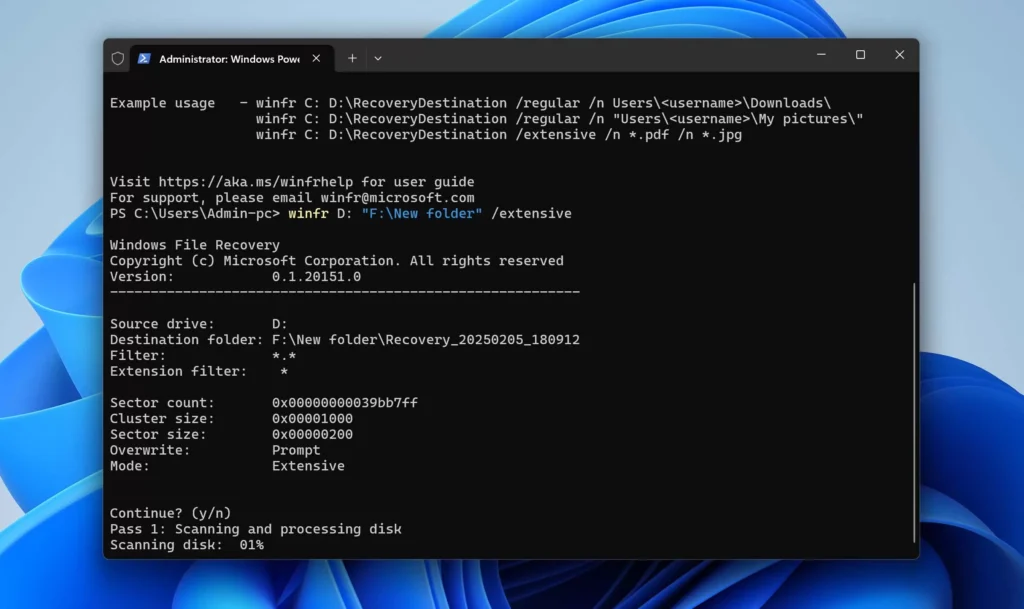
If the external hard drive is physically healthy and the computer detects it, specialized data recovery software may be able to locate inaccessible files.
Recovery applications can scan the drive for deleted files, damaged partitions, lost folders, and recognizable file structures. Depending on the condition of the drive, a quick scan may be enough, while a deeper scan can search more thoroughly.
Before using any recovery application, install it on a different healthy storage device rather than the affected external hard drive. Recovered files should also be saved to another drive.
For example, if the damaged drive contains important photographs, do not recover those photographs back onto the same drive. Use another internal or external storage device instead.
Recover Files From a Damaged File System
A corrupted file system can prevent normal access to files even though the underlying data may still exist.
File system corruption can happen because of improper removal, unexpected shutdowns, malware, software failures, or hardware problems. Recovery software can sometimes scan the storage device independently of the damaged file system and reconstruct accessible files.
The names and folder structures of recovered files may not always be preserved. In severe cases, recovery tools may identify files based on their underlying data patterns instead.
This is why recovered information should be reviewed carefully and transferred to a separate safe location.
Consider Creating a Drive Image
If the external hard drive is unstable, creating a disk image or clone before performing extensive recovery can be a safer approach.
A disk image creates a sector-by-sector copy of the available information on another storage device. Recovery attempts can then be performed against the copy instead of repeatedly accessing the original drive.
This approach can be particularly useful when a drive is experiencing read errors or other signs of deterioration. However, creating a proper image from a failing drive may require specialized software and technical knowledge.
If the drive is making unusual noises or repeatedly disconnecting, professional assistance may be safer than continuing DIY recovery attempts.
When Professional Recovery May Be Necessary
Software recovery is not appropriate for every situation. If the external hard drive has suffered physical damage, dropped while operating, experienced water exposure, or developed persistent mechanical noises, professional data recovery may be necessary.
A specialist can inspect the hardware and use controlled techniques to recover information from damaged storage components. Opening a hard drive in an ordinary environment is generally not recommended because internal components are sensitive to contamination.
If the files are irreplaceable, minimizing further attempts may help prevent additional damage.
Prevent Future External Hard Drive Problems
After recovering your files, take steps to reduce the chance of experiencing the same problem again. Always eject external storage safely before disconnecting it. Keep important files backed up in more than one location.
A reliable backup strategy can include an external backup drive combined with cloud storage or another independent copy. Important photographs, business documents, financial records, and project files should not exist in only one location.
It is also useful to monitor the condition of storage devices and replace aging drives before they become unreliable.
Final Thoughts
Knowing how to recover external hard drive data can help you respond calmly when files suddenly become inaccessible. Start by checking cables, ports, power, and whether the drive is detected by the operating system. Avoid formatting, initializing, or writing new data to the affected drive until you understand the problem.
If the drive is physically healthy, carefully selected recovery software may help retrieve inaccessible or deleted files. For drives showing signs of physical failure, professional recovery services may provide a safer option.
Most importantly, once your files are recovered, create reliable backups. A good backup strategy can turn a stressful storage failure into a manageable inconvenience and protect valuable information from future data loss.